Delete and discard
Get rid of a recording, before or after it processes.
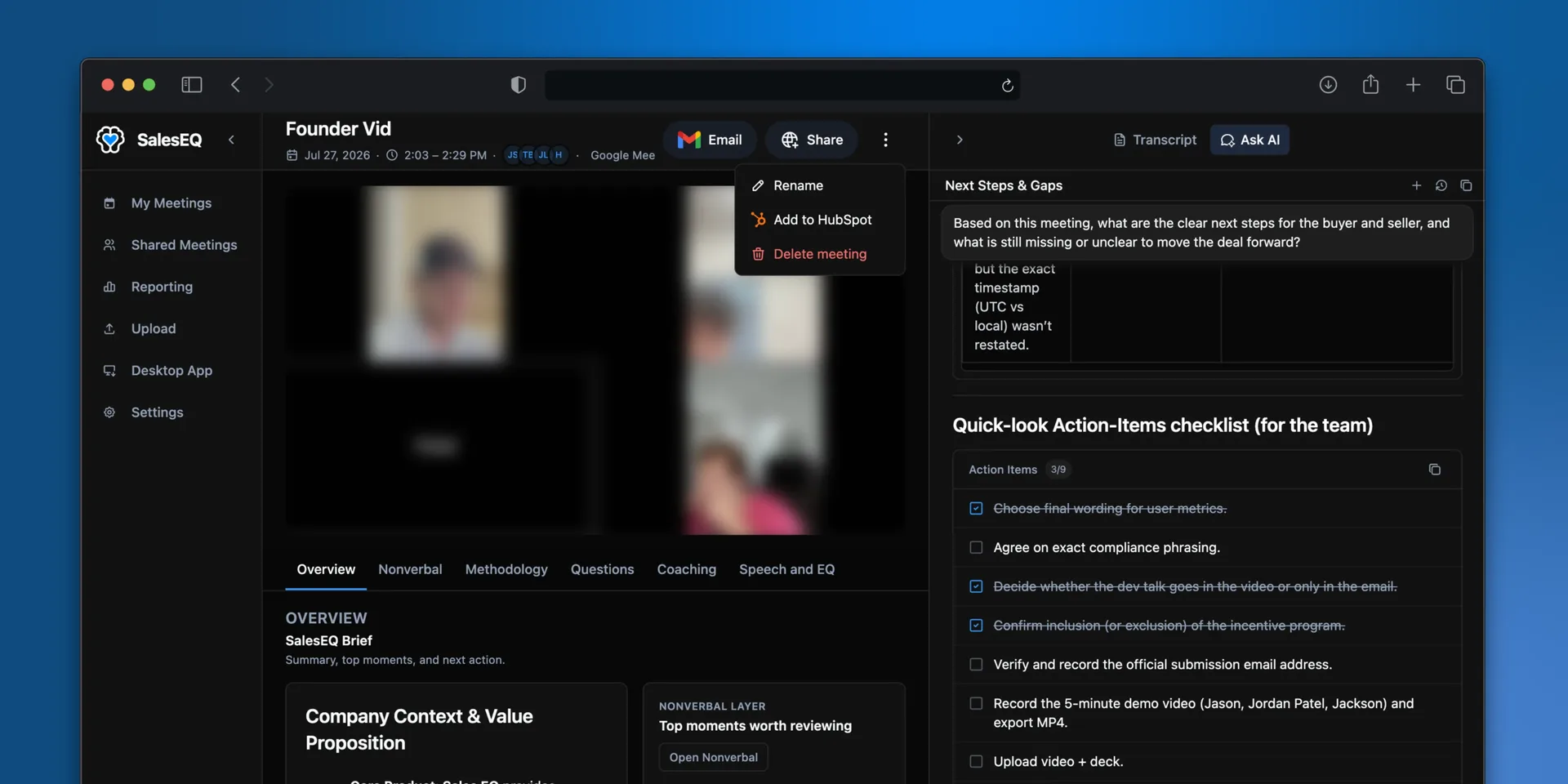
Not every recording is worth keeping. Two actions get rid of one, and which you reach for depends on whether the meeting has already processed.
Delete a meeting
Open the meeting, select More actions next to Share, then select Delete meeting. Deleting removes the recording, the transcript, and the analysis, and revokes every share on that meeting. Anyone you shared it with loses access, and public links stop working.
Delete when a meeting should not have been recorded, or when a customer asks you to remove it.
Who can delete
Deleting is not the same as editing. Editor access lets someone rename a meeting and, unless the access has an expiration, share it. Only the meeting's owner and organization admins can delete.
Admins can delete any meeting in the organization at any time. What an owner can do with their own meeting depends on the Meeting deletion policy an admin sets, which is why Delete meeting does not always appear:
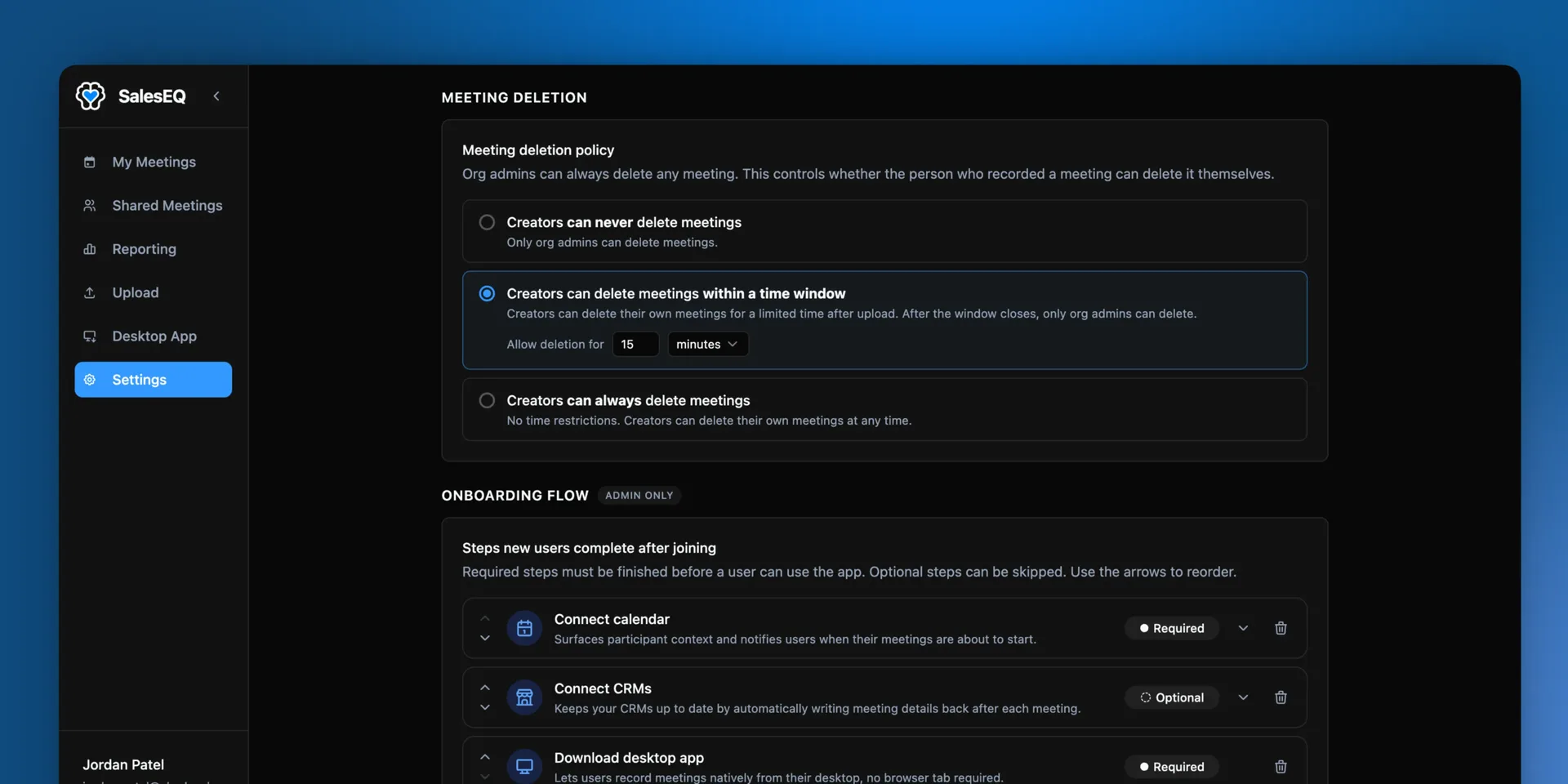
| Policy | What the owner can do |
|---|---|
| Owners can never delete meetings | Nothing. Ask an admin. |
| Owners can delete meetings within a time window | Delete for a set time after processing finishes, then it is an admin's call. |
| Owners can always delete meetings | Delete their own meetings whenever they want. |
New organizations start on the time window, set to 15 minutes. The clock starts when processing finishes rather than when the recording stops, so the window is a window on the finished meeting. A transferred meeting keeps its original window, so a new owner of an older meeting may need an admin to delete it.
Delete several meetings at once
Select the meetings on the Meetings page, then choose Delete meetings from Actions. One deletion holds up to 500 meetings.
The dialog tells you how many of the selected meetings you can delete, with the reason for any you cannot. Type confirm and delete. Only the meetings you can delete are removed, and the rest stay selected so you can see which ones were left.
Imported meetings
Deleting an imported meeting removes it from SalesEQ only. The recording stays in the tool it came from. SalesEQ also remembers that you deleted it, so a later import never brings it back unless someone selects it on purpose.
Discard a recording while it runs
While the desktop app is recording, select Discard recording in the recording bar and confirm. Recording stops and nothing is kept, so the meeting is never processed and never reaches your organization.
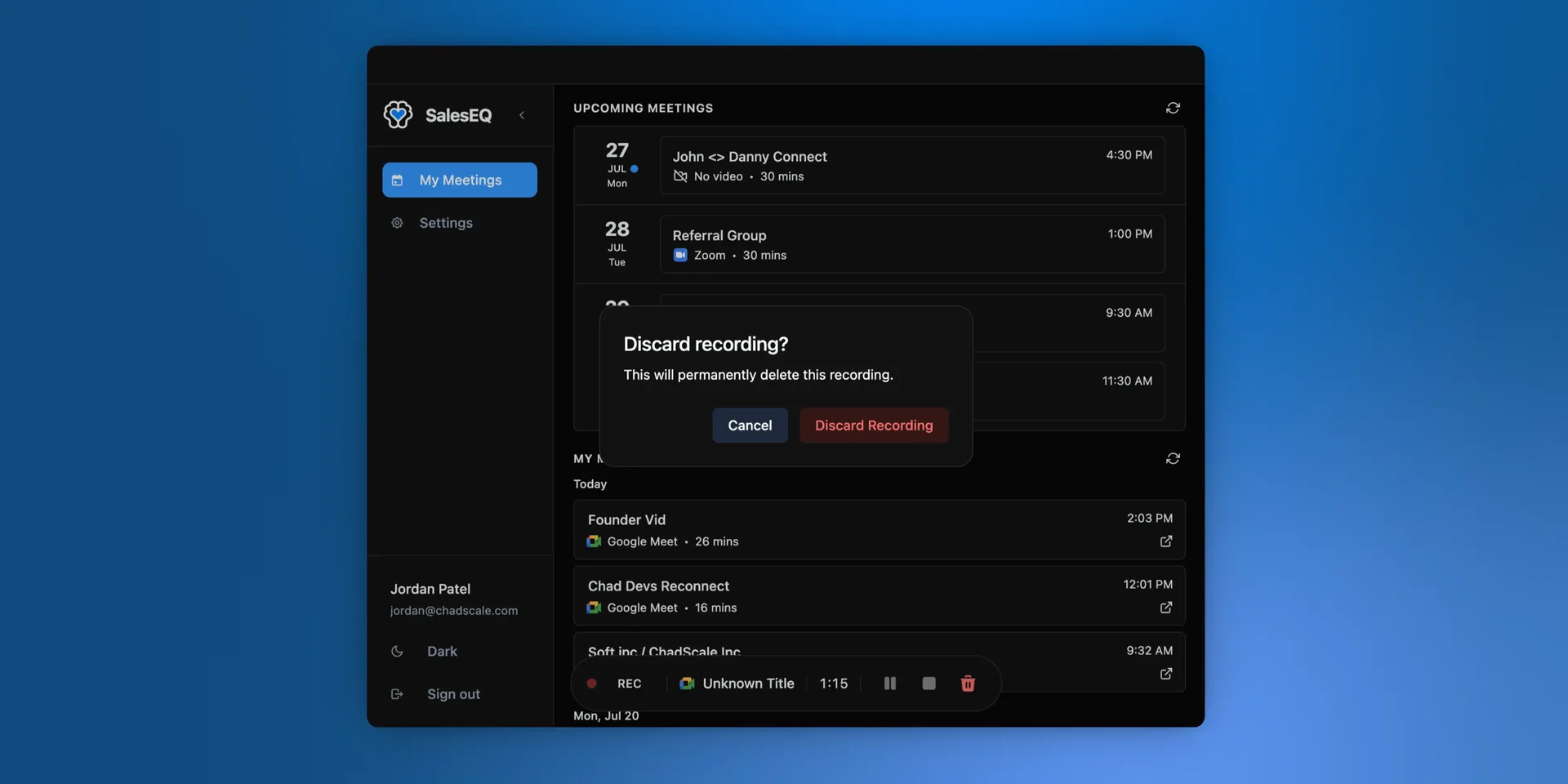
This is the right action for a meeting you started recording by mistake, or a meeting that turned out to be personal. Once you stop a recording normally, it processes like any other meeting, and removing it means deleting it.
Which one to use
| Situation | Action |
|---|---|
| Recorded by mistake, caught while recording | Discard |
| Recorded by mistake, already processed | Delete |
| Customer asks you to remove the meeting | Delete |
Next
- Viewing a meeting covers renaming a meeting or a speaker.
- Automatic recording covers stopping unwanted recordings before they start.
- Share a meeting covers who could see a meeting before you deleted it.