Search
Find a moment across your meetings and meetings shared with you.
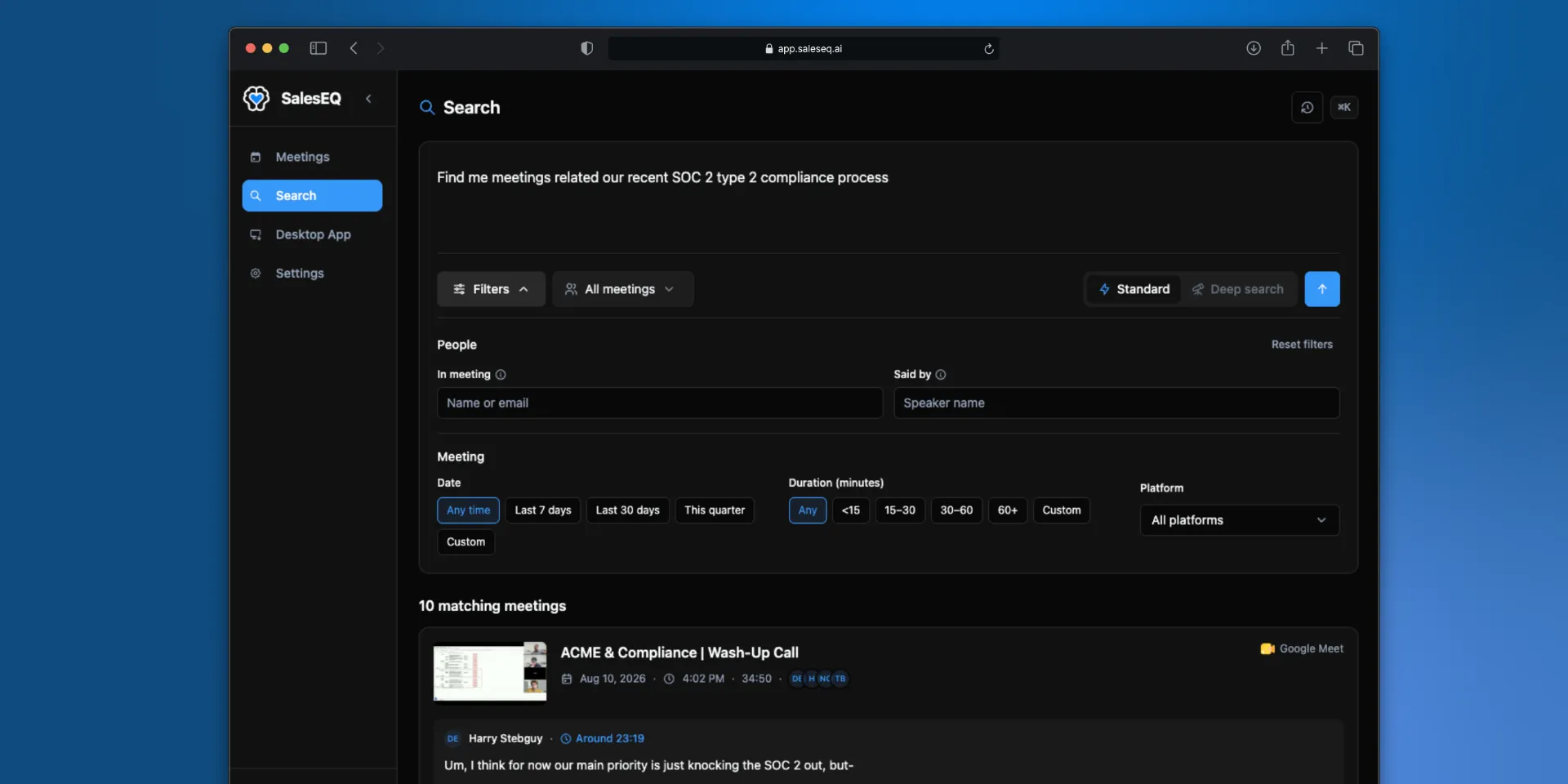
Search runs over what was said in your meetings, not their titles. It matches on meaning as well as on exact wording, so an objection described in your own words finds the moment even when nobody phrased it that way.
Open Search in the web app, describe the moment you want, and run the search. Results include the matching transcript context. Select a result to open the meeting at the relevant point.
Choose My meetings to search only meetings you own. Choose All meetings to add meetings shared directly with you or with a group you belong to.
Meetings available only through an organization default do not appear in search results. You can still open a meeting from a direct link when your role allows it.
Use filters to narrow by owner, participant, speaker, date, duration, platform, or source. Platform is where the conversation happened, such as Zoom or Google Meet. Source is the tool that recorded it, which picks out meetings imported from another tool. Search history lets you return to an earlier query and its settings.
Standard and deep search
Choose a mode next to the search button. The app remembers the mode you used last, and search history labels deep searches Deep.
- Standard is fast search for meetings and moments. SalesEQ reads your request and can pick up filters from your wording, such as a teammate's name or a date range. They appear next to Searched with above the results, where you can edit or remove them.
- Deep search is agentic search. It researches your question across meetings, running many searches and reading promising excerpts before it answers, so it takes longer: usually 5 to 30 seconds. Ask the whole question in your own words. Results show the excerpts it judged most relevant, grouped by meeting and marked Deep search.
If a deep search cannot finish, select Retry deep search, or Run standard search to run the same request as a standard search.
What is worth asking
Search earns its keep on questions a meeting list cannot answer:
Which meetings mentioned our pricing change?
What objections came up about security this quarter?
Where did anyone bring up migrating off Salesforce?
Competitor names, feature requests, and objections are the highest-value searches. They tell you what is actually coming up across your pipeline, rather than what you remember coming up.
Meaning matching covers a lot, but the closer your words are to how someone actually talks, the better the moment you land on.
Deep search suits questions that take several meetings to answer:
Which prospects pushed back on price this quarter, and how did we respond?
What did customers ask for after seeing the new onboarding, and who asked more than once?
You can also search from a connected AI assistant. Claude, ChatGPT, and other MCP clients use the same My meetings and All meetings scope.
Next
- AI assistants covers connecting Claude or ChatGPT.
- Ask AI answers questions about a single meeting.
- Tools covers deep search from an AI assistant.